
Nations & Towns
Restricted: only its creator, the people they add and admins can edit this page.
Looking for Trade Towns? Check out Trade Towns Looking for Outposts? Check out Outpost Towns
Pactoria is a server of nations and towns. A town is a protected piece of land for you and your comrades. A nation is one or more towns under one name and one banner. You found a town first, and the nation comes with it: your nation is your official identity. To join forces with other towns, the nation's Leader invites them to join.
Leaders, Owners and roles
Three ranks matter. The first two come from ownership, not from roles:
- Leader: the owner of the nation. The Leader is always the Owner of one of the nation's towns.
- Owner: the owner of a town. Owners can do everything in their own town.
- Role Head: the top level inside a role (above Manager and Member).
Everything else is handled with roles, groups of permissions you give to players. See Roles and permissions below.
Nations
Founding a nation
You don't found a nation on its own. Founding your first town creates it:
- Stand where you want your town and run
/town found, or/town found My Town. - If you are not in a nation yet, a nation named Kingdom of My Town is created for you and you become its Leader.
- Change the nation's name at any time with
/nation rename <new name>.
A player can only be a member of one nation and can only own one town. Use /nation to see your nation, /nation list to list nations, /nation towns <nation> to list a nation's towns and /nation list-online-players to see who is online.
Adding and removing players
Players join a town, and with it the nation.
- Type
/town invite <player>(you can hit Tab to autocomplete) or use the Invite Player button in the town menu, which has a search box. - They get an invitation in chat. They can list their invitations with
/town acceptand accept one with/town accept <town>. - To withdraw an invitation:
/town uninvite <player>.
You need the INVITE_PLAYERS permission in the town to invite and KICK_PLAYERS to kick.
- Leave your town and nation:
/town leave - Remove a citizen:
/town kick <player> - See who lives in your town:
/town members
The Leader cannot leave the nation and the only Owner of a town cannot leave their town. Hand it over first (see below).
Handing over, disbanding and splitting
- Hand over a town: the Owner runs
/town set-owner <town> <player>(or uses Transfer Ownership in the town menu). The new Owner must be a citizen of the town. - Hand over a nation: the Leader runs
/nation set-owner <player>(or Transfer Leadership in the nation menu). The new Leader must be the Owner of a town in the nation. If it is your nation's only town, handing the town over hands over the nation too. - Disband a town: the Owner runs
/town disband <town>and confirms. A nation ends when its last town does. - Leave a nation as a town: the town's Owner can run
/town secede <town>to make the town its own nation. - Expel a town: the Leader can run
/nation expel <town>.
Joining towns together
A nation grows when its Leader invites another town:
- The Leader runs
/nation invite-town <town>. - The town's Owner accepts with
/town join-nation <town> <nation>, or declines with/town decline-nation <town> <nation>.
If the town's Owner leads another nation, they must hand that leadership over first. If it is that nation's only town, you are asked to confirm and the empty nation is disbanded. Once a town joins, it shows as part of the new nation on the map.
Setting a nation banner
You should make a banner to represent your nation, it will appear on your guard towers and on the website.
- Make a banner in-game.
- Hold it in your main hand.
- Type:
/nation set-banner
Town Coffers
Every town has a treasury, referred to as its coffers, which pays for land (plots), guard towers, war camps and taxes. You earn coffer money by completing Town Item Quests, which you can find by right-clicking the Nexus in your town. Open your town's info with /town info.
Paying out of the coffers needs the ACCESS_COFFERS permission in the town. If a recurring fee (a guard tower's, for example) was suspended because the coffers ran dry, use /town pay <town> <paymentId> once the money is there.
Note: It is against the rules to betray your nation, for example: stealing all the diamonds then leaving the nation. Currently we do not permit moving money between nations.
Taxes
Every 24 hours, the server deducts taxes from your town's coffers, as a percent of the town's total plot value. Every town pays, including new ones. Use /town tax to see your town's taxes and recurring fees.
It is important that your town has enough money in the coffers to cover the taxes. If you are unable to pay the taxes, the server will block you from your own town and slowly sell your plots until all debts are paid off.
Nation Alignment
A nation can mark another nation as either: Friendly, Hostile or Neutral. This will change the color of their name tags in the tab list.
Use /nation align to see your alignments and /nation align friend|neutral|hostile <nation> to change one. You need the CHANGE_ALLIANCE permission, which the Leader always has.
If two nations both set each other to friendly, they have a 'two way alliance' which has some implications for Sieges. Alliance status has implications for Guards and Sieges, you can read more on the Siege & Wars page.
Nametag colors:
- Green - Member of the same nation as you.
- Blue - Marked as friendly by your nation.
- Yellow - Neutral nation member
- White - Not in any nation.
- Red - Marked as hostile by your nation.
Roles and permissions
Permissions are handed out through roles. A role belongs to either a nation or a single town. Roles can be given to players of other nations too, as outsiders, and they get exactly that role's permissions and nothing else.
Nation roles (/nation role) can hold: NATION_SETTINGS (rename the nation, set the banner), CHANGE_ALLIANCE, EDIT_ROLES, KICK_PROTECTED and START_SIEGE (start a siege, skip a prelude and set your vulnerability hours). The Leader always has all of them.
Town roles (/town role) can hold: MANAGE_PLOTS, ACCESS_COFFERS, KICK_PLAYERS, INVITE_PLAYERS, TOWN_MANAGEMENT (town settings, spawn, destruction mode, restoring after a siege), MANAGE_ZONES, BUILD, DESTROY, OPEN_CONTAINERS, KILL_MOBS and MANAGE_DEFENCES (guard towers and war camps). The town's Owner always has all of them.
When you found a town you get a town role called Higher Up that holds every town permission, and a new nation starts with a Diplomat role that holds CHANGE_ALLIANCE. Every town also has the built-in roles Citizen and Nation Member.
Role levels: a Head can rename the role, change its permissions, delete it and make other Heads. A Manager can add and remove members, and can only grant permissions they have themselves. A Member just holds the permissions. Nobody can hand out a permission they do not have.
Useful commands:
/nation role list,/nation role create <name>,/nation role add-player <role> <player>,/nation role add-permission <role> <permission>/town role list <town>,/town role create <town> <role>,/town role add-player <town> <role> <player>,/town role add-permission <town> <role> <permission>- Use
remove-playerorremove-permissionto take them away again, andmembersto see who holds a role.
Giving other nations access
You can give a whole nation or town one of your roles, so that everyone who belongs to it has that role, including players who join later:
/nation access <nation> <role|none>: across your whole nation. Leader only./town nation-access <town> <nation> <role|none>: inside one town. Town Owner only. Handy for an embassy or an ally's build rights./town town-access <town> <other-town> <role|none>: for the citizens of one other town. Town Owner only.
Run each command without a role to list who has what.
Towns
A town is a place on the map that belongs to a nation. Every town has a Nexus Pad that is used for sieges and for doing Town Item Quests. Players can only be in one town at a time.
Town limit
A player can own only one town, and the Leader is already the Owner of one. A nation gets more towns when other towns are invited into it (see Joining towns together above). Use /town nation-access or /nation access to give another nation build rights without merging.
To found a town
- Find a spot for your town.
/plot foundcostshows what founding would cost where you stand, and whether anything blocks it. - Make sure you stand in a clear 9x9x9 space for the nexus pad that is above Y=0.
- Collect 100 gold ingots and have them in your inventory. (The server decides which item pays the fee, gold ingots at the moment.) The fee is returned if the founding is refused.
- Run
/town found(or/town found YourTown) in chat. - A town and Nexus pad will be created around you. The town's Owner can move the Nexus with
/nexus set, as long as the whole pad stays on the town's land and no siege is running.
New towns have PvP protection: for a while after founding (a week by default) nobody can be hurt by another player inside the town, and a new town cannot be sieged until it is 72 hours old by default.
Setting Town Spawn
You must set a default spawn location for your town members. It must be a safe, clear location and not inside a zone. Use /town default-spawn set to set the spawn to the location you are standing on, which needs the TOWN_MANAGEMENT permission. /town default-spawn lists the default spawns of your nation's towns and whether they are safe.
Expanding your town
Your town will have plots of land already claimed for you. A plot is a 16 x 16 block tract of land that belongs to your town. This can be done in game but we recommend using the online nation manager. You need the MANAGE_PLOTS permission in the town.
To claim more next to your existing plots:
- Walk to an unclaimed plot that is just outside your town.
- Run
/plot buyto claim it, or/plot guifor a visual map to click on./plot buybigclaims the 2x2 block of plots around you. - To claim every free plot along one side of your town in one go, run
/town expand <north|south|east|west>. - Repeat for other plots.
Plots must touch your town, with no holes, and must not be too close to another town. How many plots you may own depends on your town's level. You can sell plots with /plot sell (or /plot sellbig), but you cannot sell the last plot or split the town in two. To earn coffer money you must do the Town Item Quests.
Town Silos
Every hour the silo barrels will be refilled with an assortment of items some of which can only be obtained from Silos. Some items may only spawn for specific towns you may need to trade with other nations to get the items you need.
Town Item Quests
Right click the spawner on the Nexus Pad. It will show an inventory with some items that you need to collect. Your town will earn coffer money and town XP by doing them. Your town will be assigned a set of item objectives which will be things like "Collect 64 Carrots" When you collect the required items and give them to the Nexus, you will be rewarded with both coffer money and town levels. The quests will reset every 11 hours. The number of quests scales with the active player count of your nation.
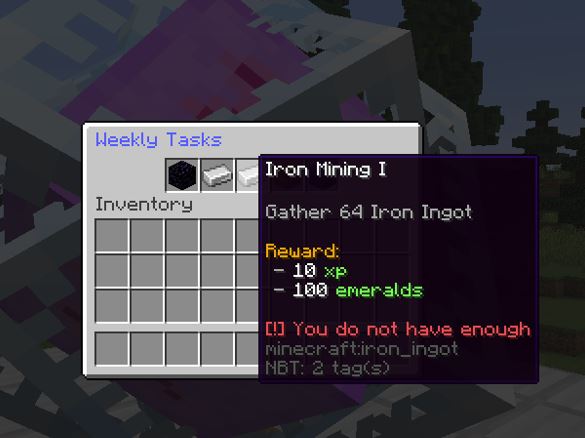
Use /nexus info to see the Nexus, silo refill and quest reset time of the town you are standing in. Only members of a town's nation can see where its Nexus is.
Town settings
/town info: your town's info./town rename <town> <name>renames it./town destruction <town>: turns TNT and fire damage in your town on or off (TOWN_MANAGEMENT).- Leaving the nation or being kicked takes away your Owner/Leader status and your roles at once.
Pressure Pads
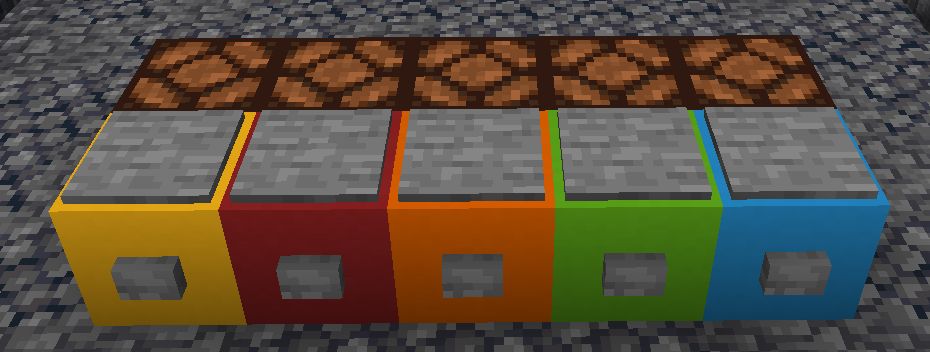
In towns stone pressure pads can only be triggered by players, not mobs. If a stone pressure pad, stone button or lever is placed on or against colored concrete it will only activate depending on the player's allegiance. The town the pad stands in decides.
- Lime - Only nation members
- Light Blue - Nation members and nations marked as Friendly
- Yellow - Neutral nations or players not in a nation
- Red - Nations marked as Hostile.
- Orange - Nations marked as Hostile or Neutral or players not in a nation
- Green - Normally only nation members, but during a Siege it will allow any player who is on the defending team.
- Brown - Only activates if the player has an empty inventory
It is a good idea to use the Lime Concrete to protect all the doors around your base. You could also make traps that are only triggered by hostile/neutral players. This can be a good way to detect invisible enemies.
Zones
Towns can create zones, these are used to control access to certain areas of your town. For example, you may want to set a zone to restrict your vault to only trusted citizens. You can also use zones to give non citizens build access so they can have an embassy or shop in your town.
A zone is defined using a gold axe by left-clicking in one corner of the zone, and then right-clicking in the opposite corner to form a cube. Make sure to include the walls, floor, roof, and door of the room.
Then use /town zone create myCoolZone to create the zone, and confirm. You must have the MANAGE_ZONES permission in the town to create zones, and you become the admin of the zone you create. A zone cannot cover the town spawn. Being the town Owner does not make you a zone admin, so give admin access to anyone who should manage it.
Each role can have its own level of access to a zone: interact (open doors), build or admin. In the example below trusted players can break blocks, but recruits can only interact. Use /town zone to list all zones, then /town zone info <town> myCoolZone for details. You can also manage zones from the Manage Zones page of the town menu.
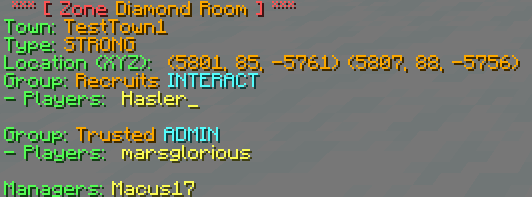
Set access per role with /town zone set-group-access MyTown MyCoolZone interact Trusted (the last word is a role), or per online player with /town zone set-player-access MyTown MyCoolZone build Notch. Players of other nations can be given a role too (see Roles and permissions above), so Notch can have access to your zone without joining. Right click a block with a feather to see what zones are applied. Pistons cannot move blocks between zones.
Strong, weak and disabled zones
New zones are strong. If two strong zones overlap, you need access to both. But if a weak zone overlaps with a strong zone you only need access to the strong zone. Consider an apartment building for citizens, you could put a weak zone around the whole building. Then assign each room a strong zone that permits the individual player build access to just their room. The weak zone prevents building outside the rooms but the strong zones will overrule the weak zones inside the rooms.
You can use the command /town zone type MyTown myCoolZone weak to change myCoolZone to a weak zone (or strong, or disabled).