Getting Started With Wiki
Restricted: only its creator, the people they add and admins can edit this page.
This guide introduces you to the different features in the Wiki and how to use them. It also covers the basics of using the wiki to create your nation page, character page, or a page about your town.
Creating a page
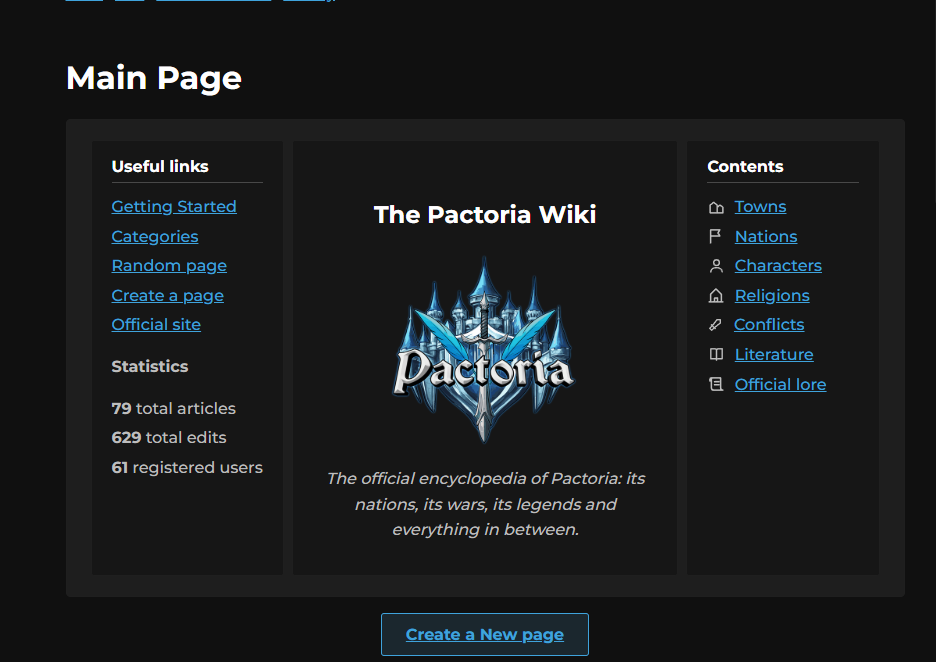
Click the Create a new page button in the Main Page (Click on the 'Wiki' tab top of your screen).
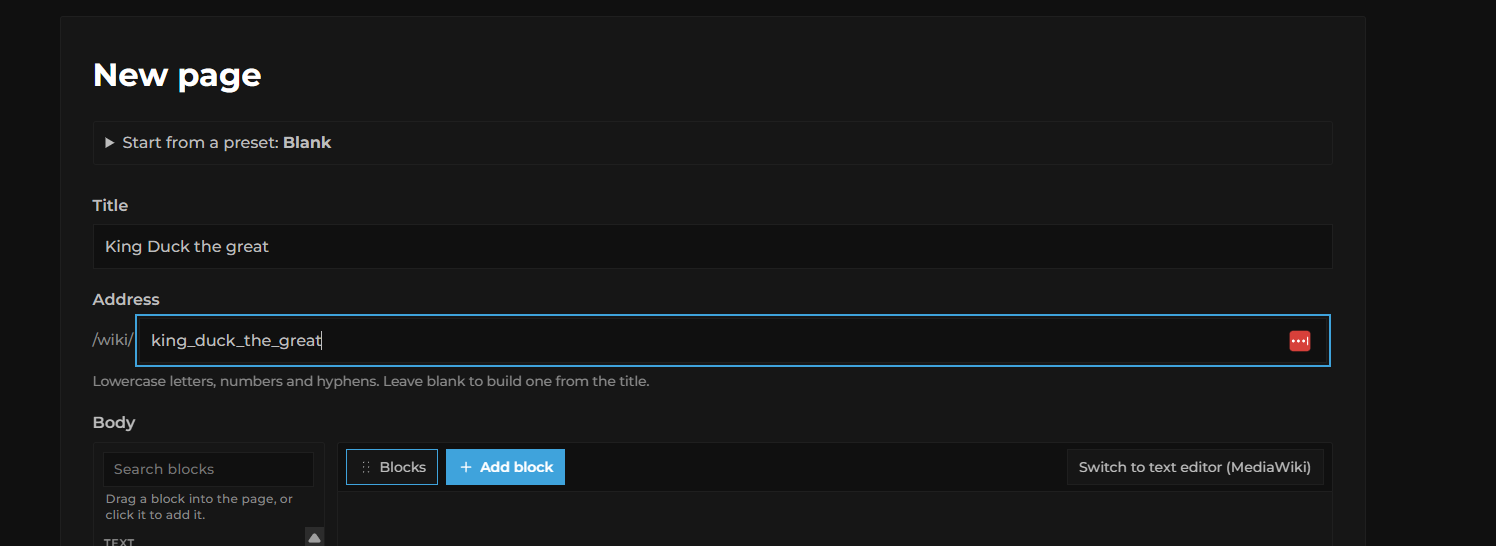
From there, you may use one of the desired templates created by our wiki team or create your own custom page layout. For this example, we will use a blank page layout. After you have chosen the layout, fill out the page name and its address. You may choose to leave the address blank, and our system will make one for you.
The following GIF shows you how to drag blocks into your wiki page. Drag the required blocks in to create your wiki page.
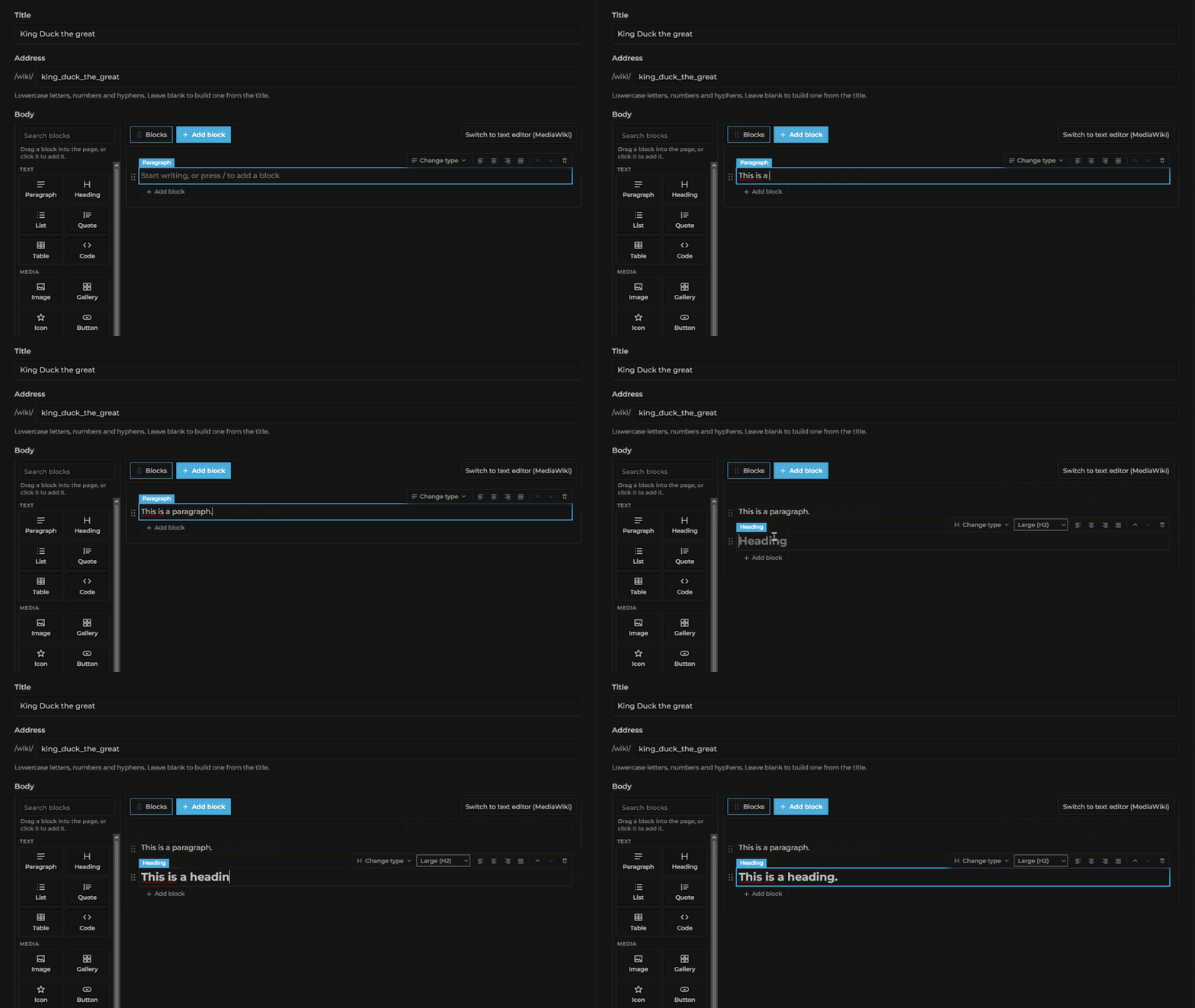
After finishing your page, it's time to publish it. Scroll down to the end. If you want, you may click the Preview page button to preview it. If you think it needs any changes, make them; otherwise, fill in the Categories section (for example, "Characters"). You may leave a note for yourself and others in the What changed field, and at last, click the Save button to publish the page in the wiki.
Editing a page
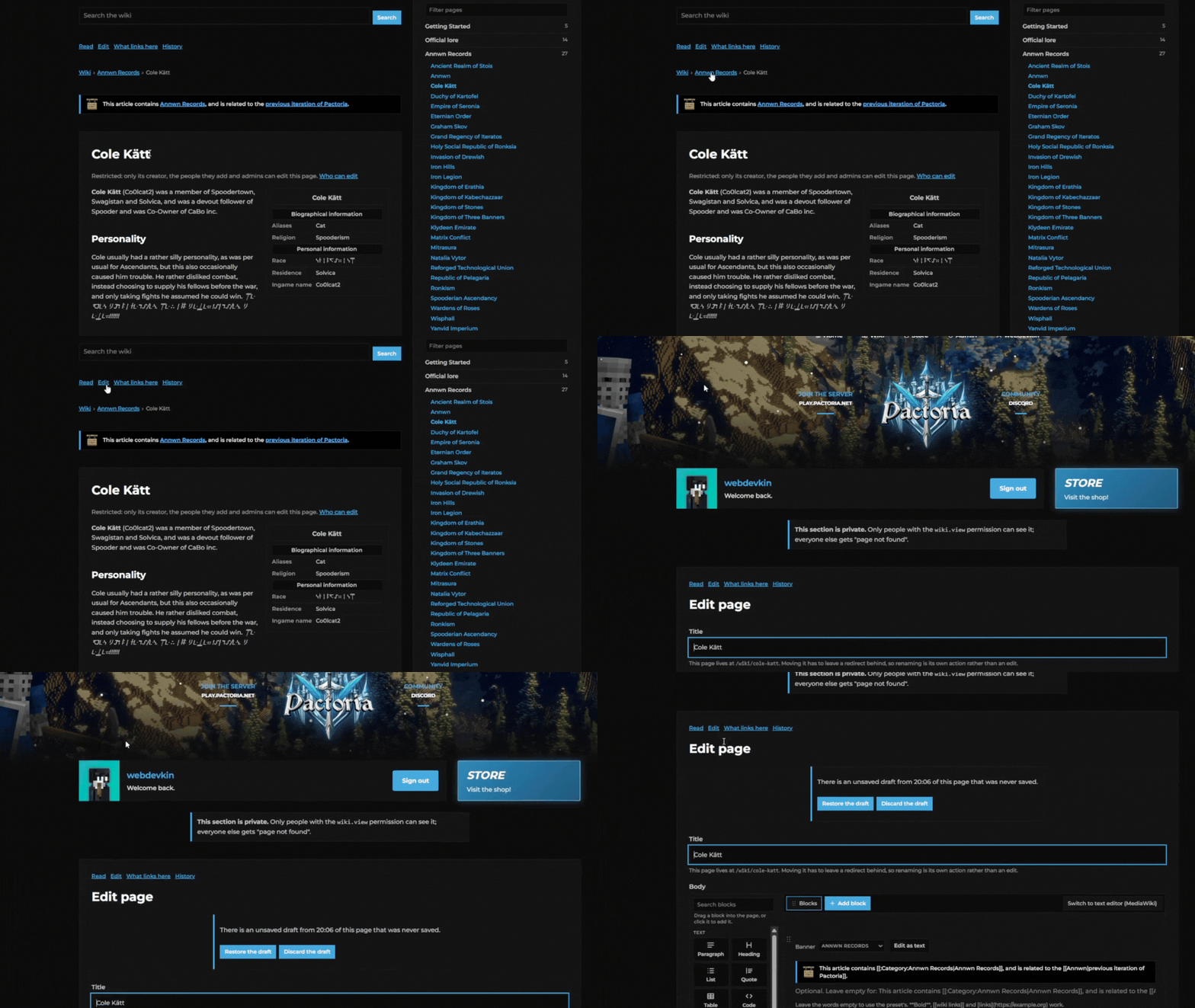
Now that you have created your first page, you must have some ideas that you wish to add. To do this, open up your page and click the 'Edit' button in the top-left below the search bar, as shown in the GIF.
Note: Only you can edit whatever you create. If you want to add editors, refer to the next section.
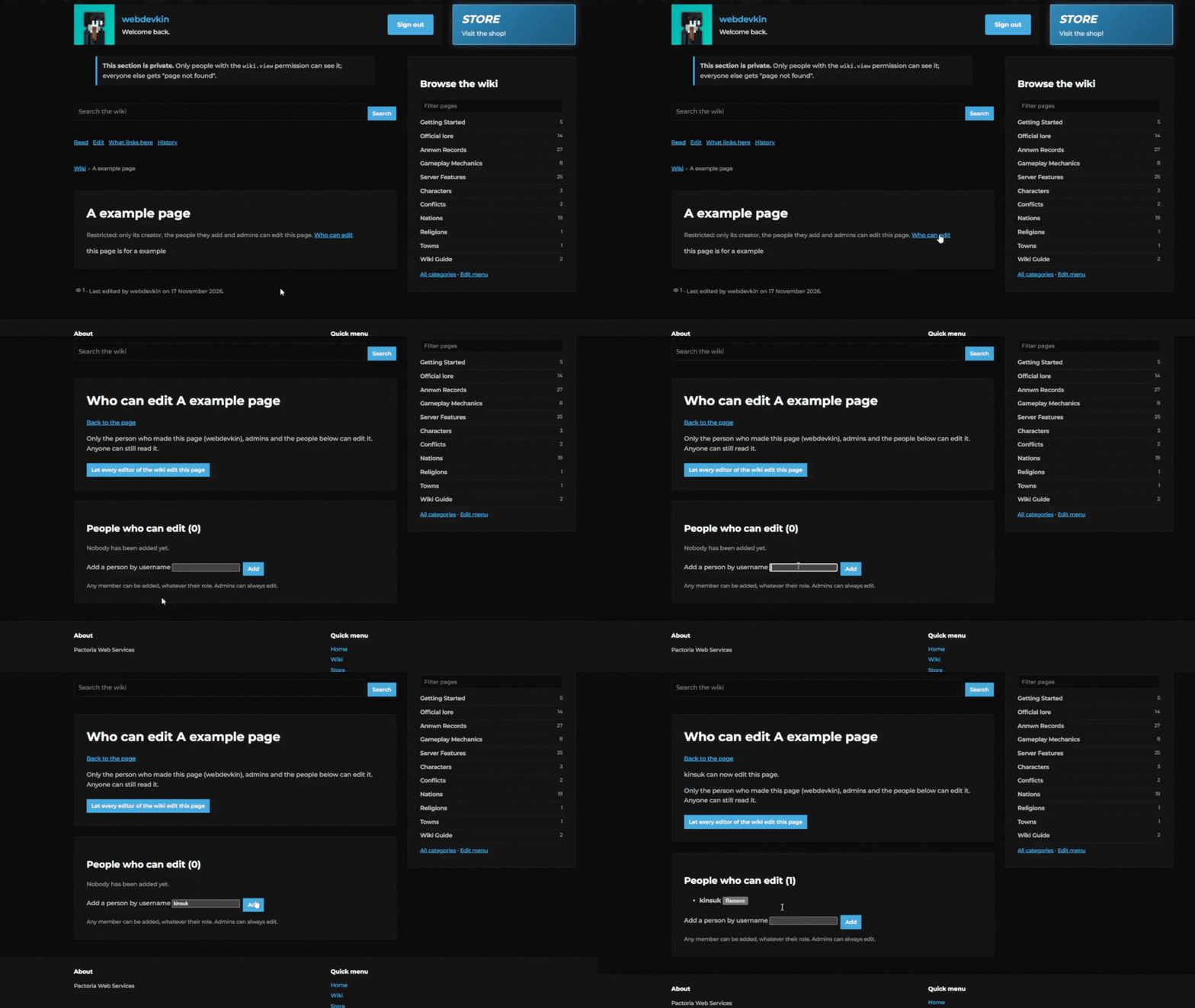
How to add editors to your page
Now that your page is setup, you might want to have people contribute to your edits. Tod othis, press on 'Who can edit' near the top of your page and type the username in the box. You can also choose to grant access for everyone to edit.